Team Management Module Overview
The Team Management module in the admin view offers a robust suite of tools to oversee and organize teams, projects, groups, and individual members within the platform. Designed for efficiency and transparency, it enables admins to manage funding allocations, collaborative structures, and user roles across various subsections. This module integrates seamlessly with the Review module for detailed tracking and supports blockchain-based user and team management.
Subsections
Awarded Teams
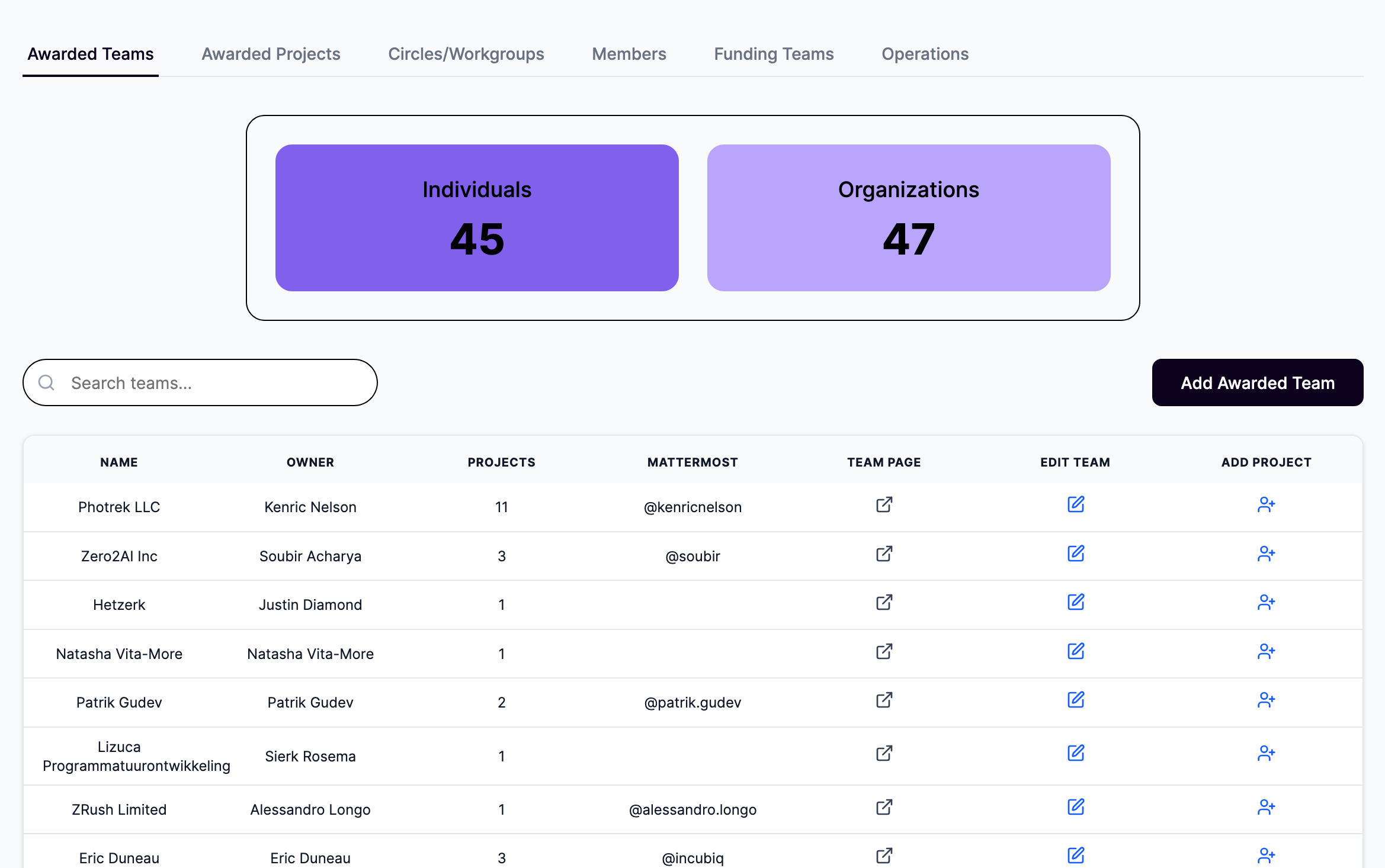
The Awarded Teams subsection provides a centralized view of all teams that have received funding awards.
-
Filters:
- Search bar to locate teams by name.
-
Features:
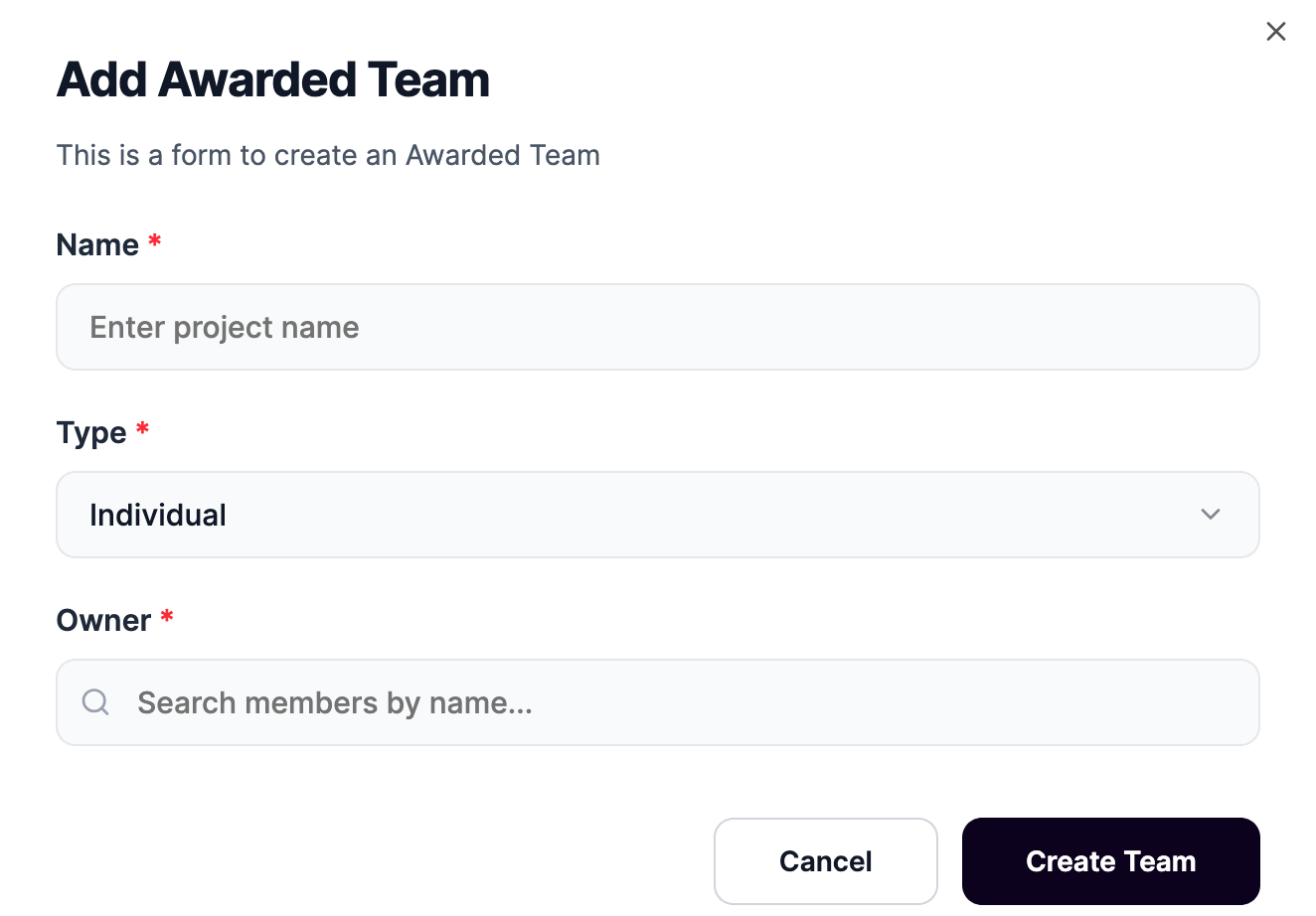
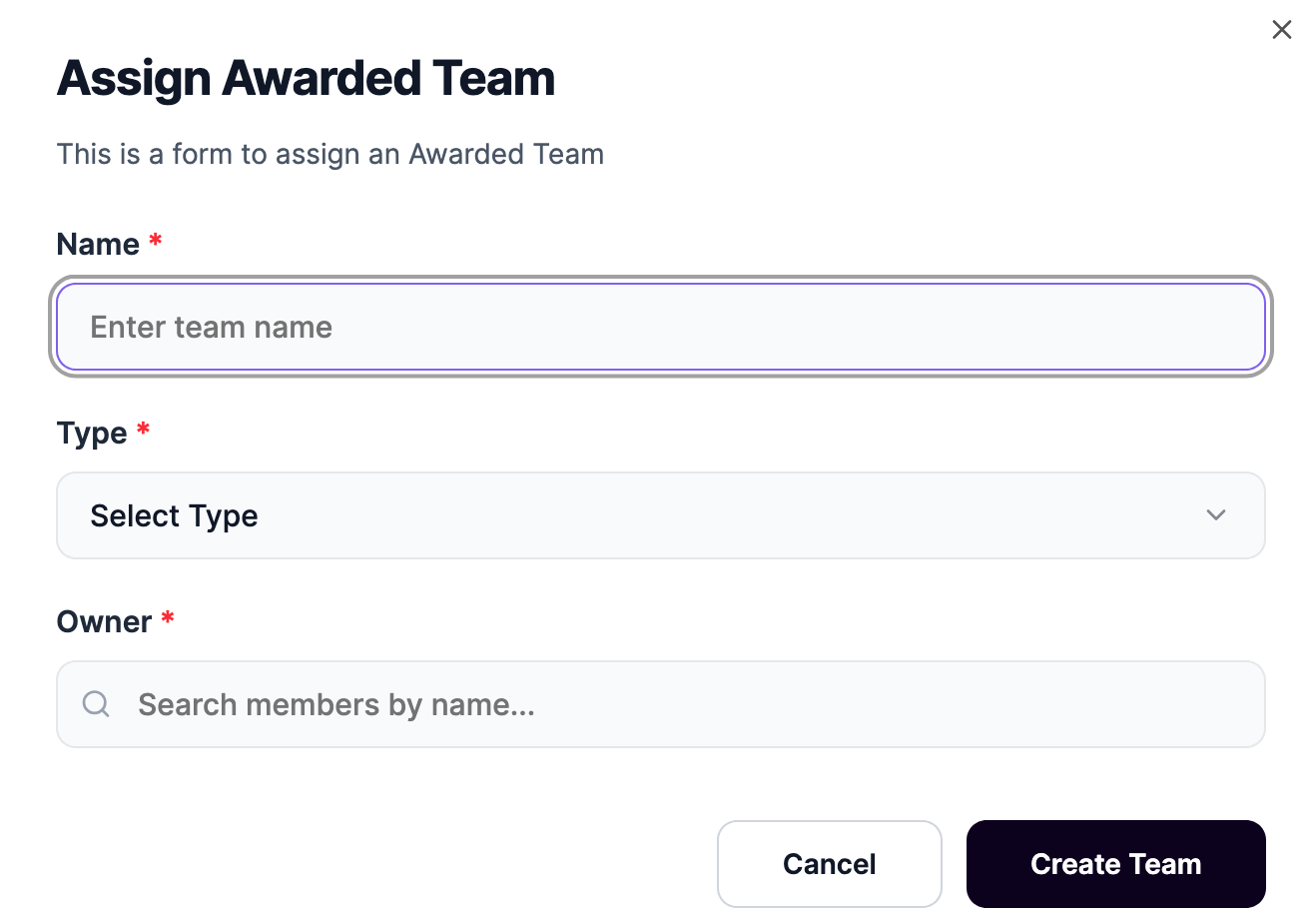
- Ability to add a new awarded team.
-
Option to download the full list as a CSV file.
-
Team page links directly to the corresponding team view in the Review module.
-
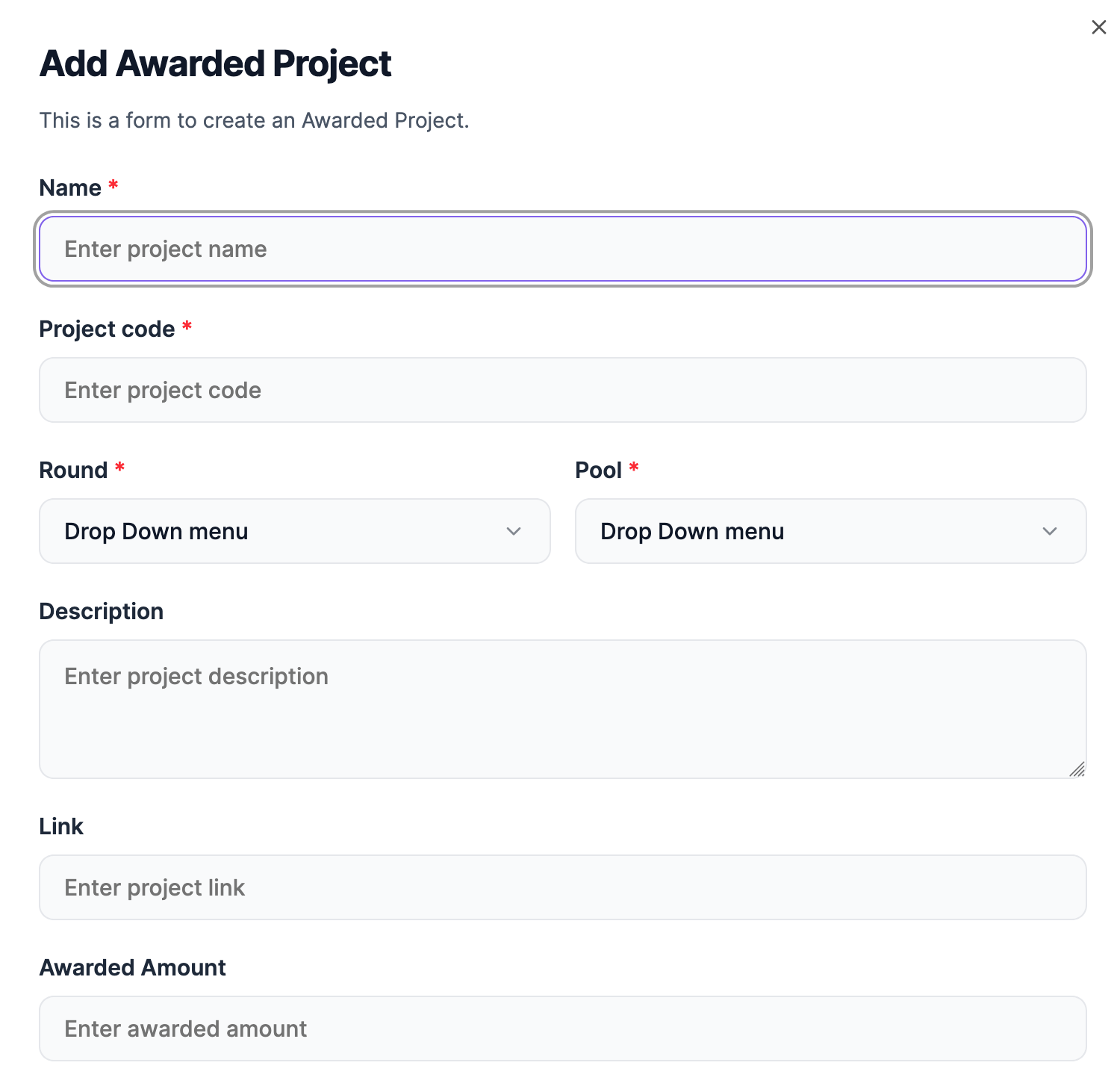
Ability to add awarded project
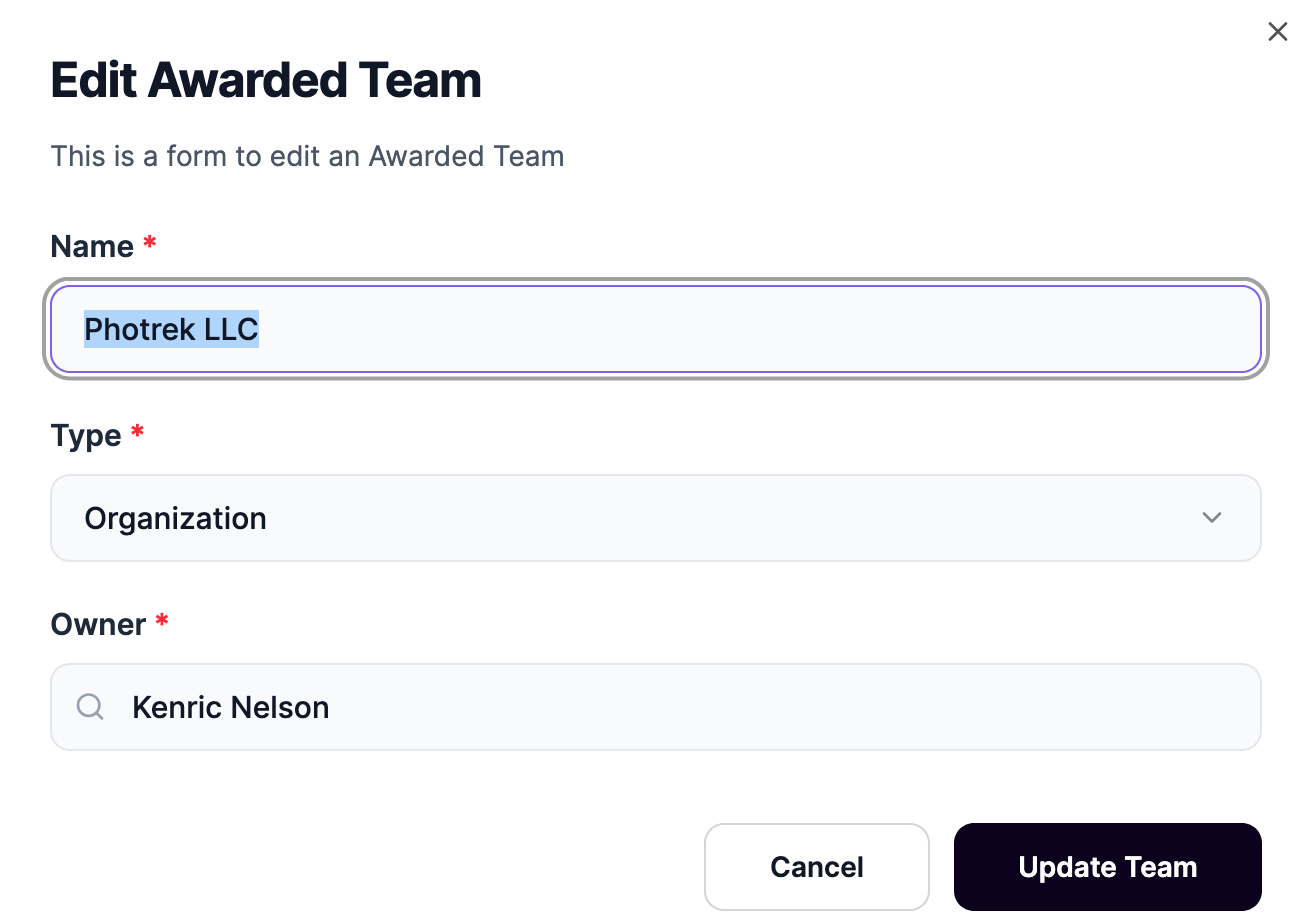
- Edit team functionality allowing modification of:
- Team name
- Team type
- Owner
-
Data and Visualizations:
- Summary cards displaying:
- Total number of Individuals
- Total number of Organizations
- Table with the following columns:
- Name – Team or organization name
- Owner – Name of the team owner
- Projects – Number of associated projects
- Mattermost – Team’s Mattermost handle
- Team Page – Link to team profile
- Edit Team – Action to modify team details
- Add Project – Action to assign a new project to the team
- Summary cards displaying:
This section enables admins to manage awarded teams, track their composition, and maintain accurate team metadata.
Awarded Projects
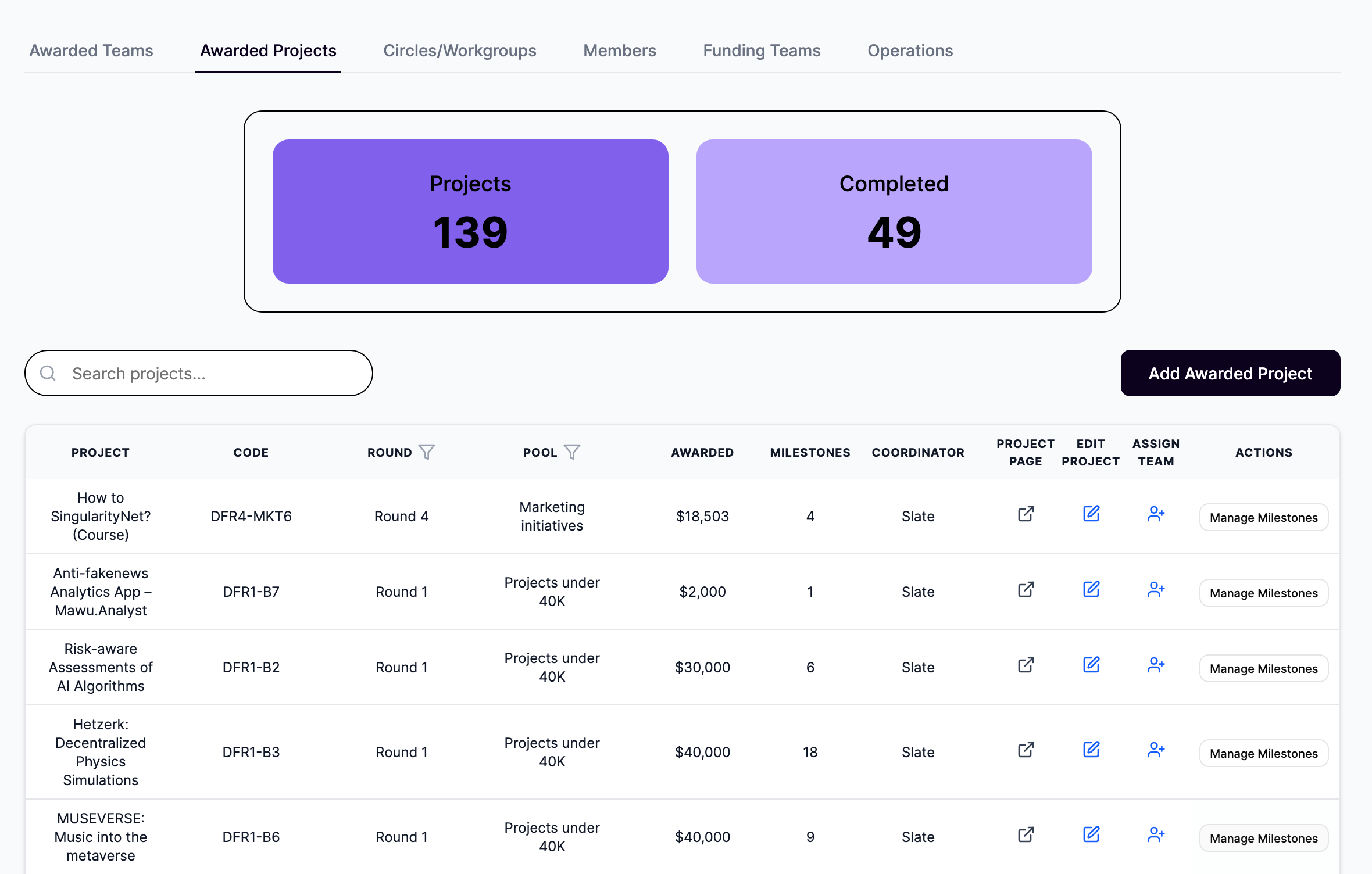
The Awarded Projects subsection offers a comprehensive view of all projects that have been granted funding.
-
Filters:
- Search bar to locate projects by name or code.
-
Features:
- Ability to add a new awarded project.
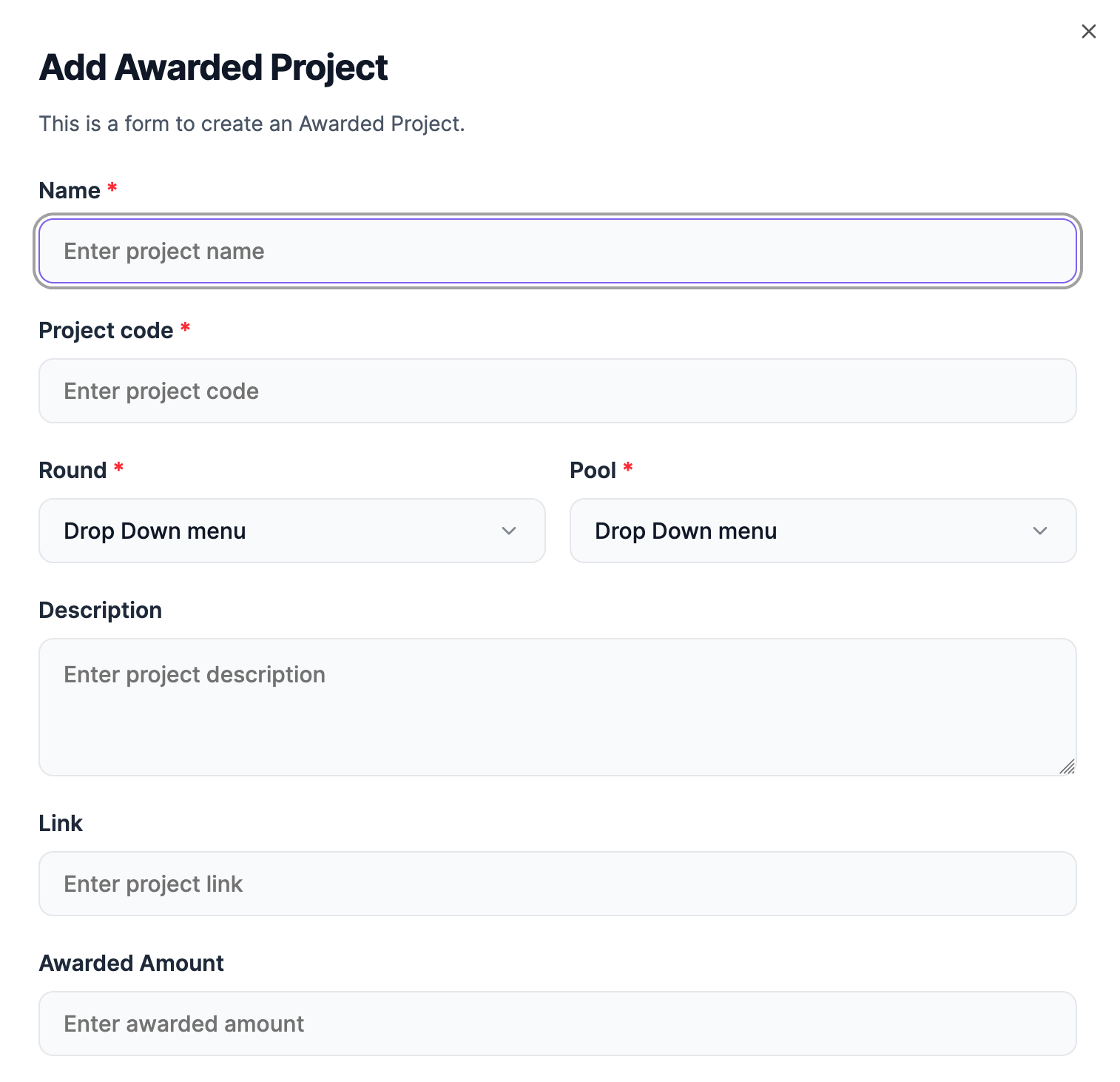
- Manage Milestones button for each project to view/edit milestone details.
- Project Page links directly to the project’s subsection in the Review module.
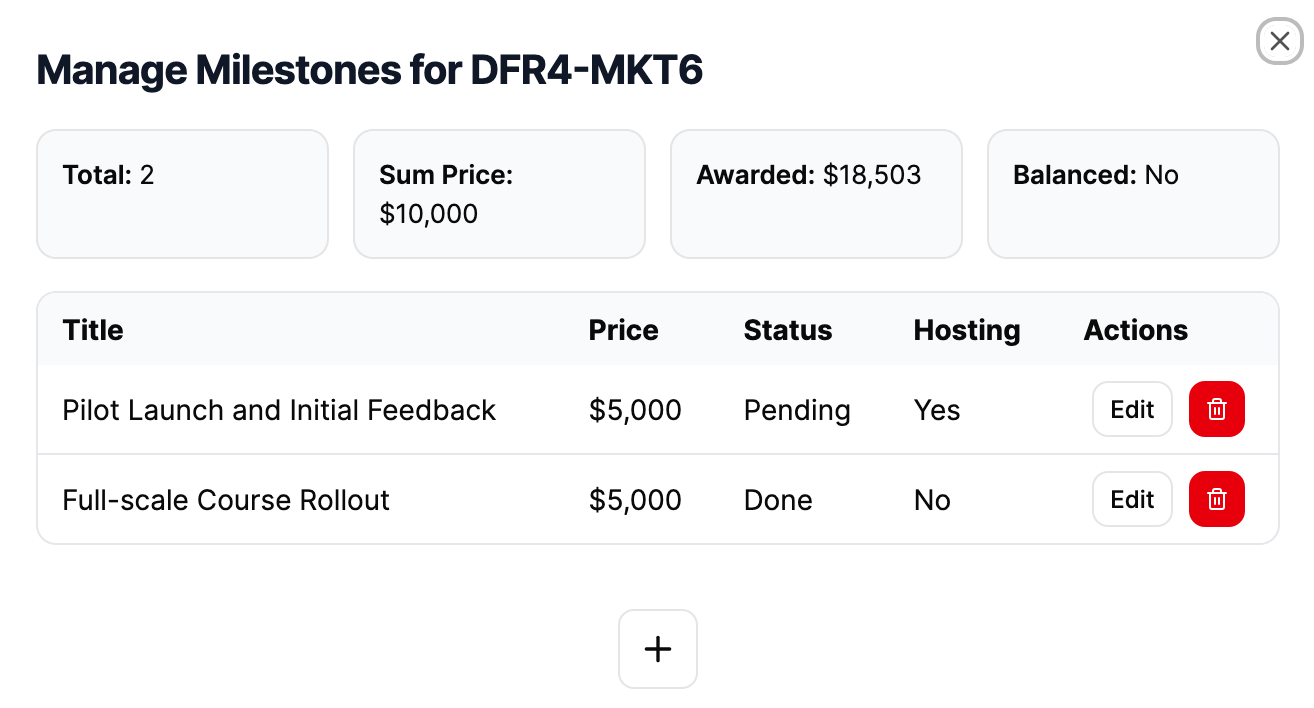
- Edit Project allows the editing of the project informations such as Name, Round, Pool...
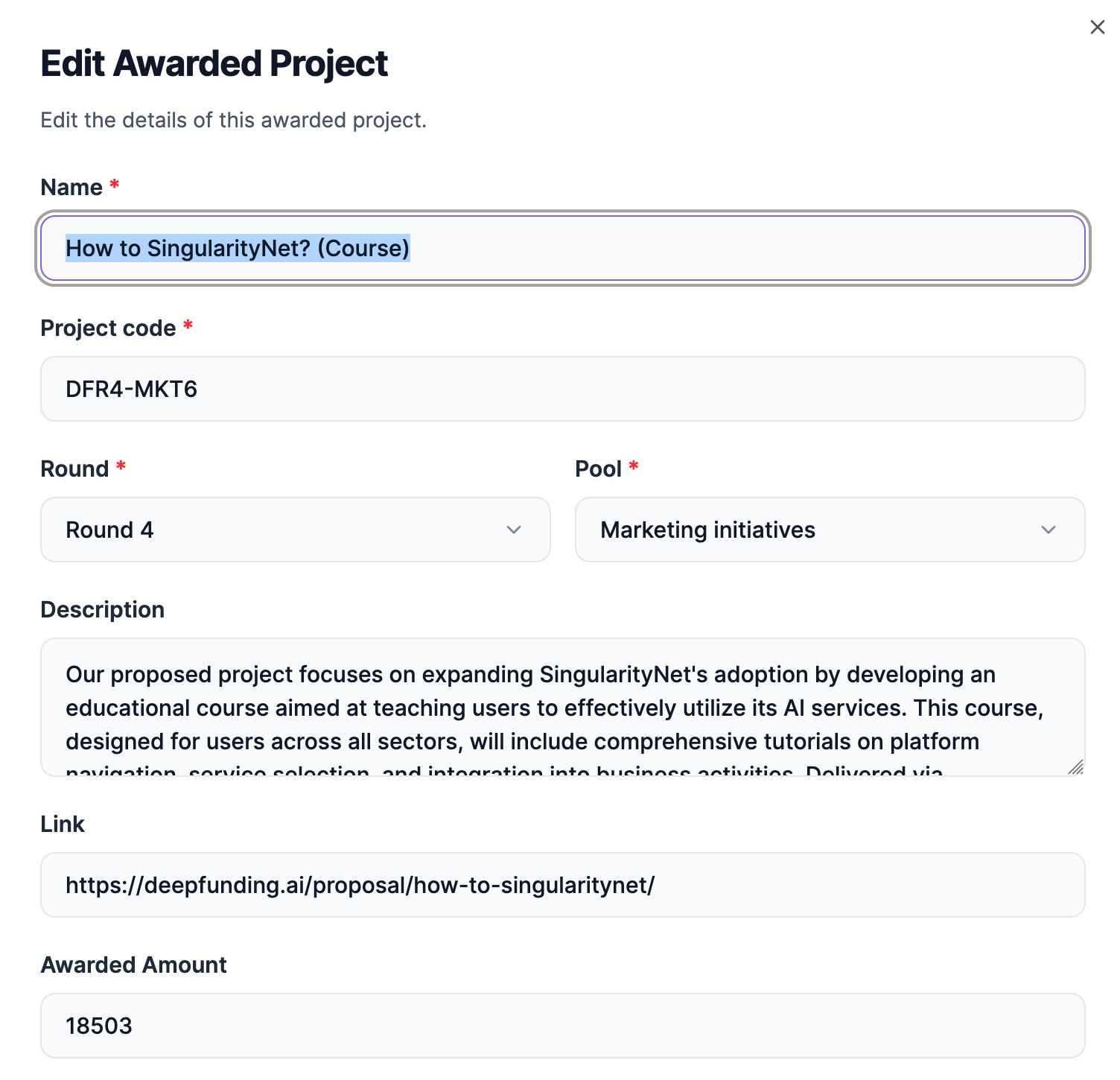
- Assign Team to a project
-
Data and Visualizations:
- Summary cards displaying:
- Total Projects
- Total Completed projects
- Table with the following columns:
- Project – Project title
- Code – Unique project identifier (e.g., DFR4-MKT6)
- Round – Funding round (e.g., Round 4)
- Pool – Funding pool/category
- Awarded – Amount awarded (in USD)
- Milestones – Number of milestones
- Coordinator – Project coordinator name
- Project Page – Link to project in Review module
- Edit Project – Action to modify project details
- Assign Team – Action to assign a team to the project
- Actions – Includes Manage Milestones button
- Summary cards displaying:
This section allows admins to monitor project progress, funding allocation, and milestone status across all awarded initiatives, with seamless navigation to the Review module.
Circles/Workgroups
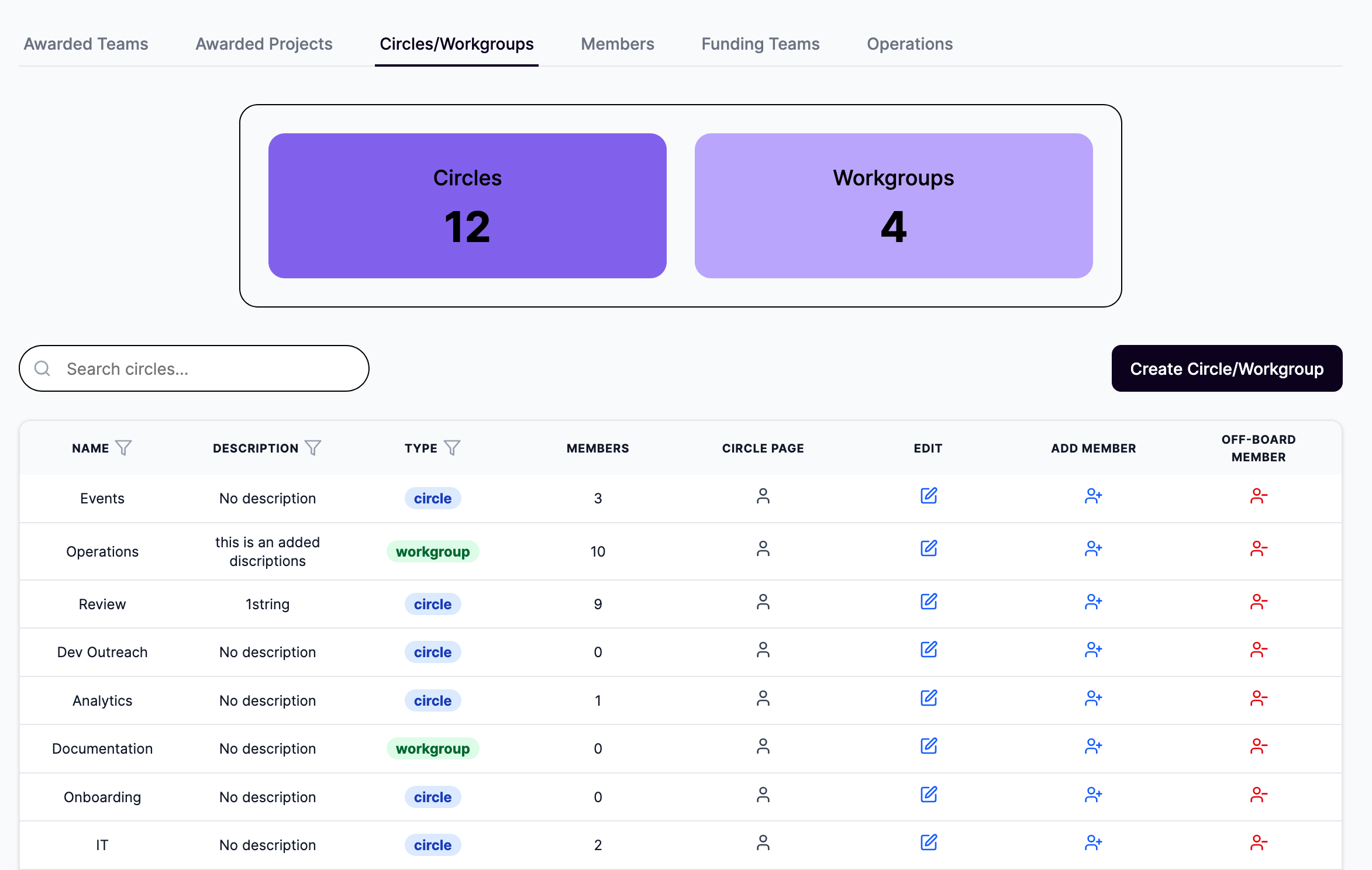
The Circles/Workgroups subsection enables management of collaborative groups and working teams within the platform.
-
Filters:
- Search bar to locate circles or workgroups by name.
-
Features:
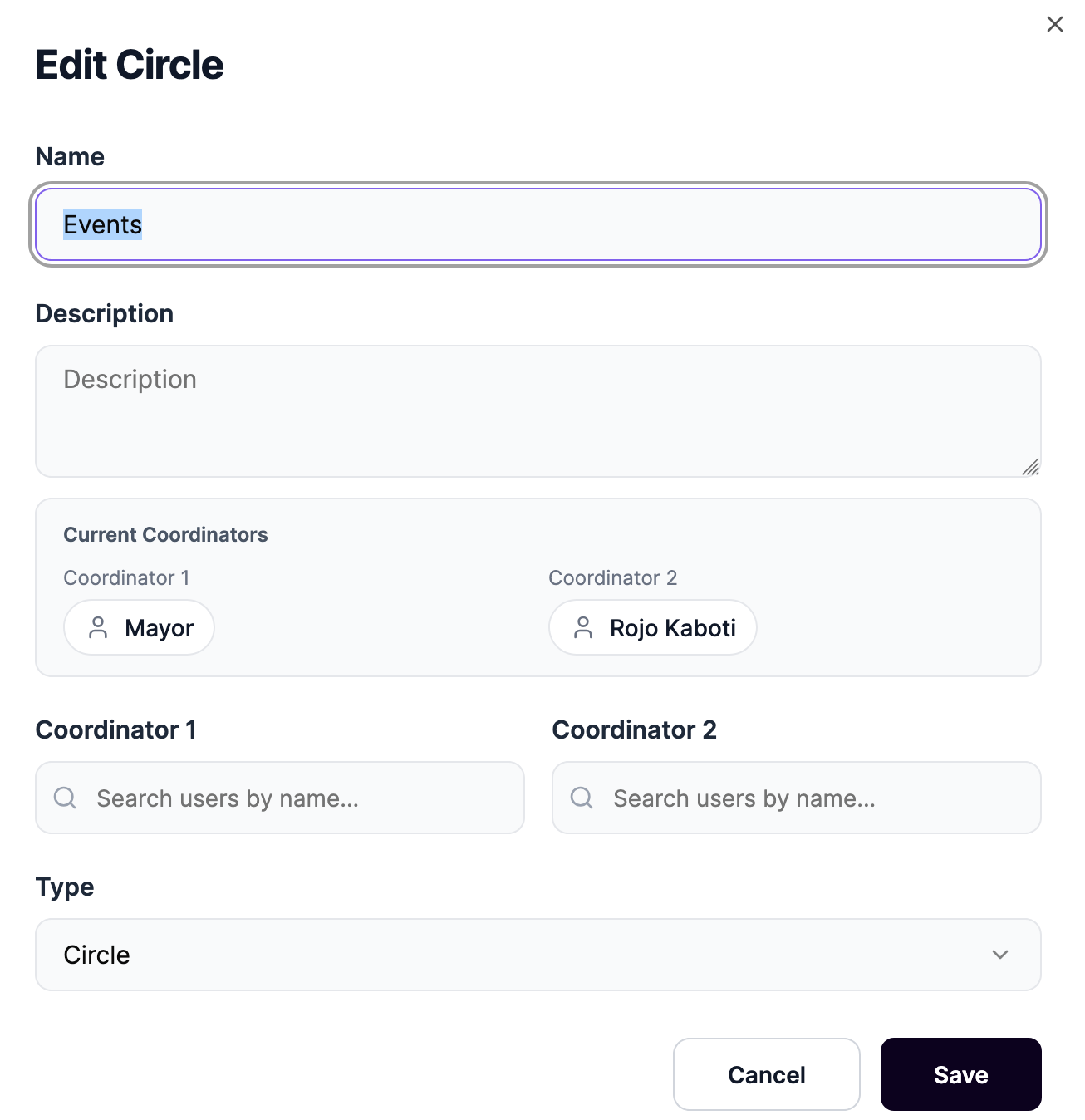
- Ability to create a new Circle or Workgroup.
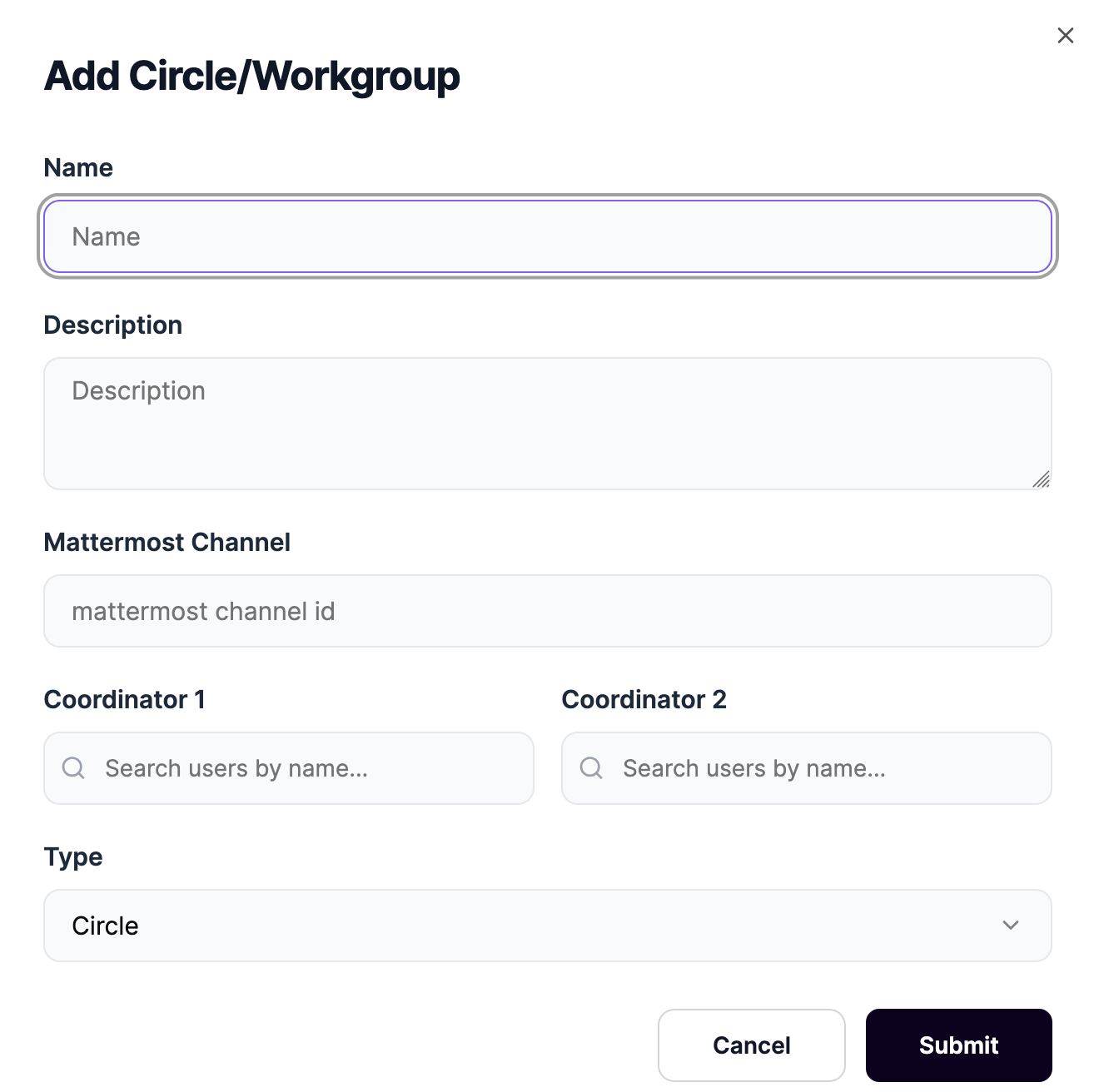
- Edit button to modify group name, description, and type.
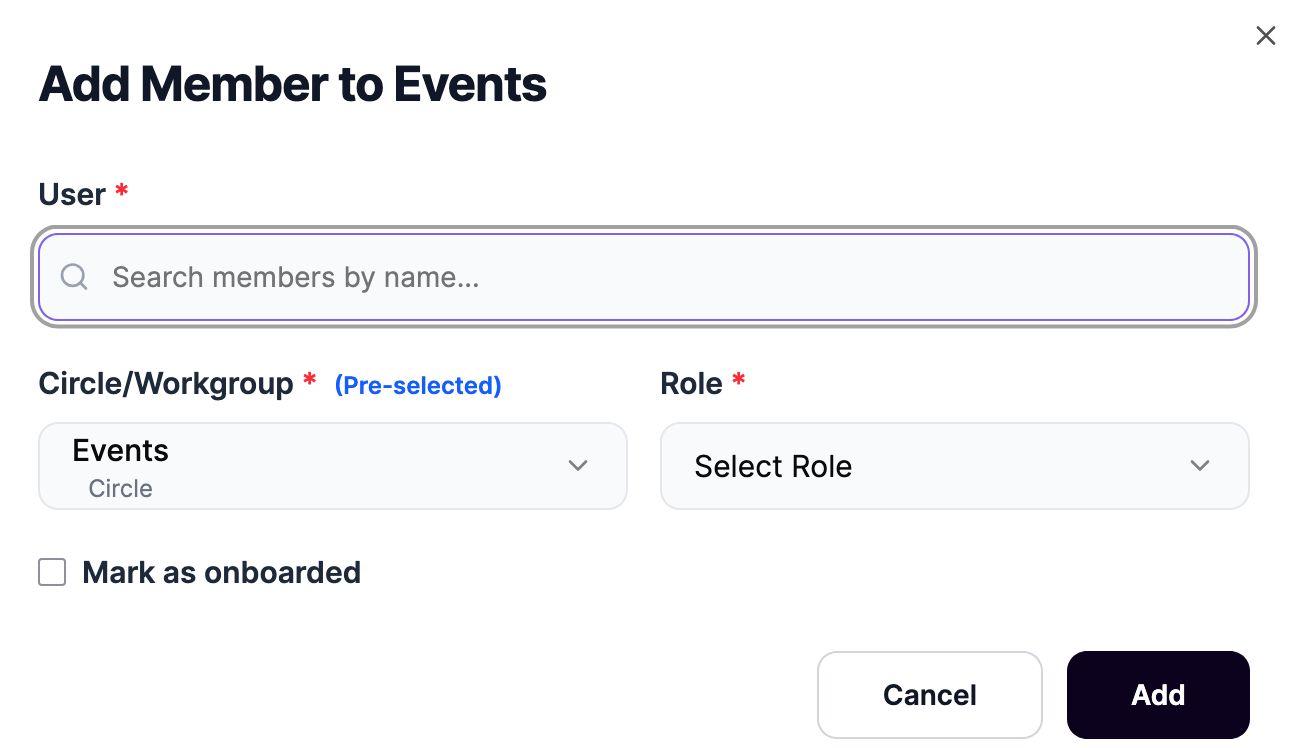
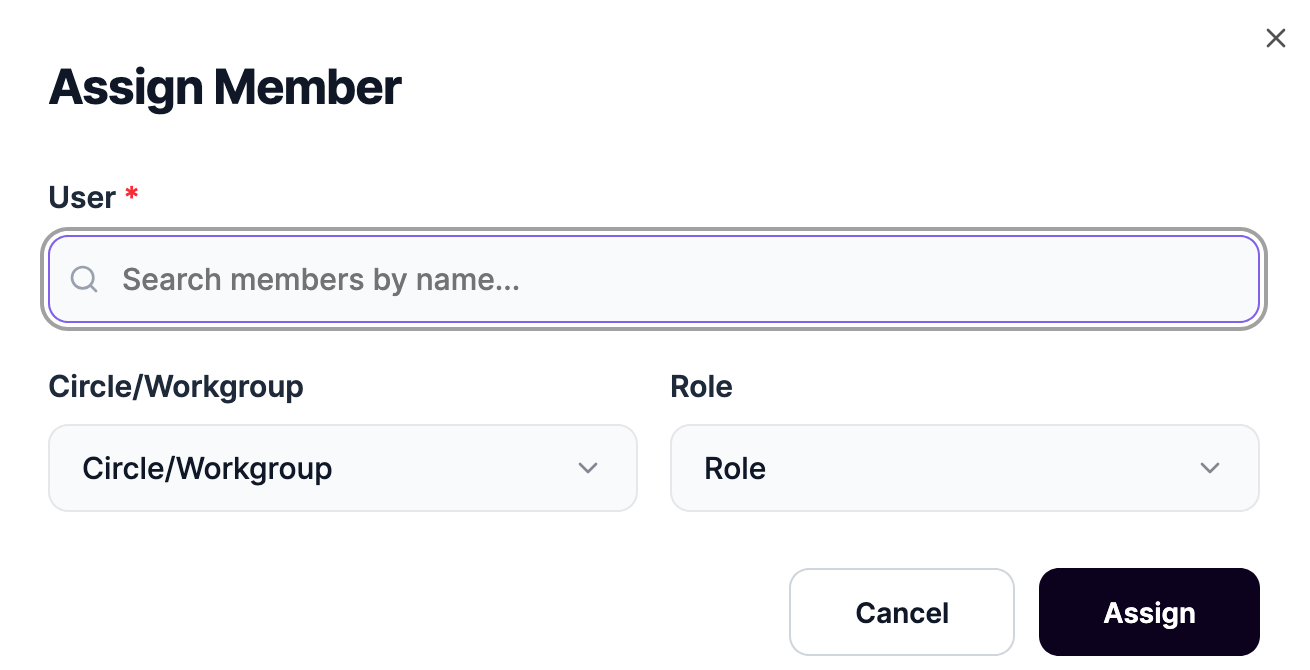
- Add Member action to assign existing users to the group (with role selection and onboarding status).
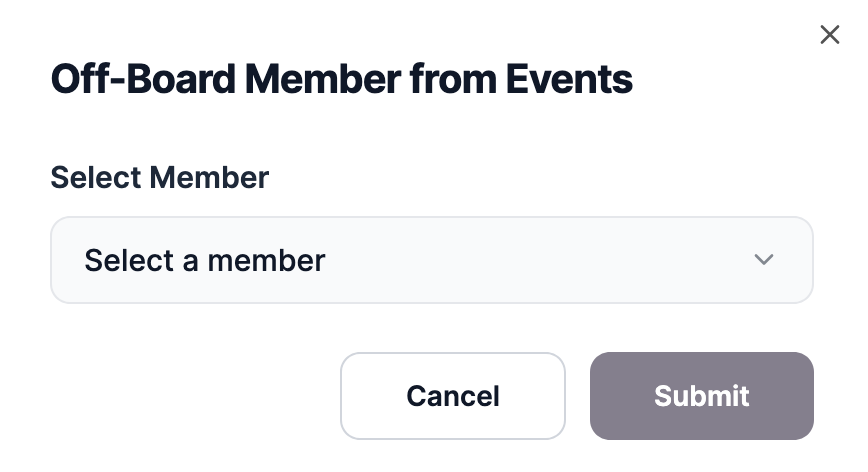
- Off-board Member action to remove members from the group.
-
Data and Visualizations:
- Summary cards displaying:
- Total number of Circles
- Total number of Workgroups
- Table with the following columns:
- Name – Group name (e.g., Events, Review, IT)
- Description – Optional group description
- Type – Either Circle or Workgroup
- Members – Number of current members
- Circle Page – Link to the group’s dedicated page
- Edit – Action to update group details
- Add Member – Action to assign a user with a selected role
- Off-board Member – Action to remove members
- Summary cards displaying:
This section supports internal collaboration by organizing members into functional or interest-based groups with full lifecycle management.
Members
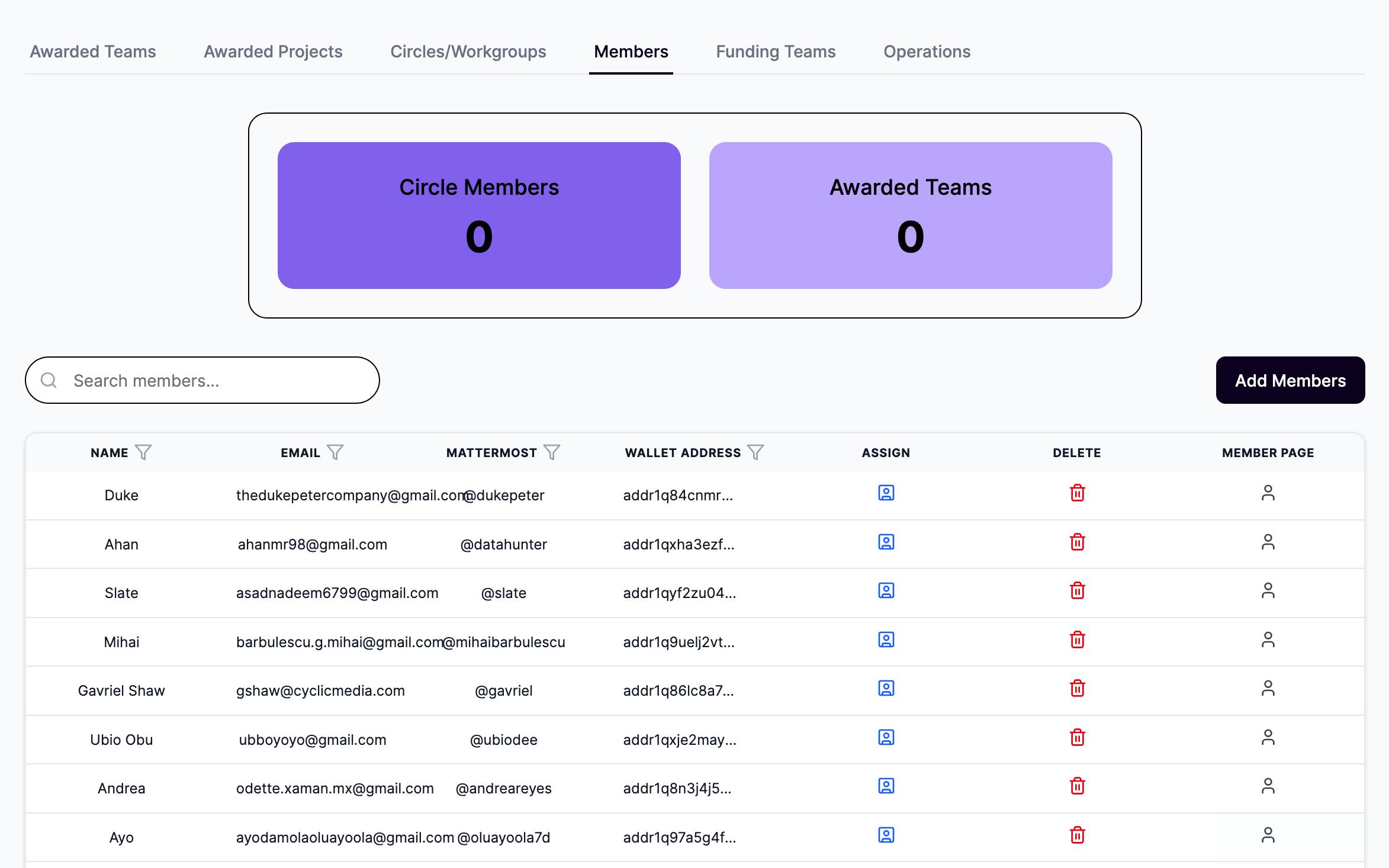
The Members subsection provides a full directory of all registered users on the platform.
-
Filters:
- Search bar to locate members by name.
-
Features:
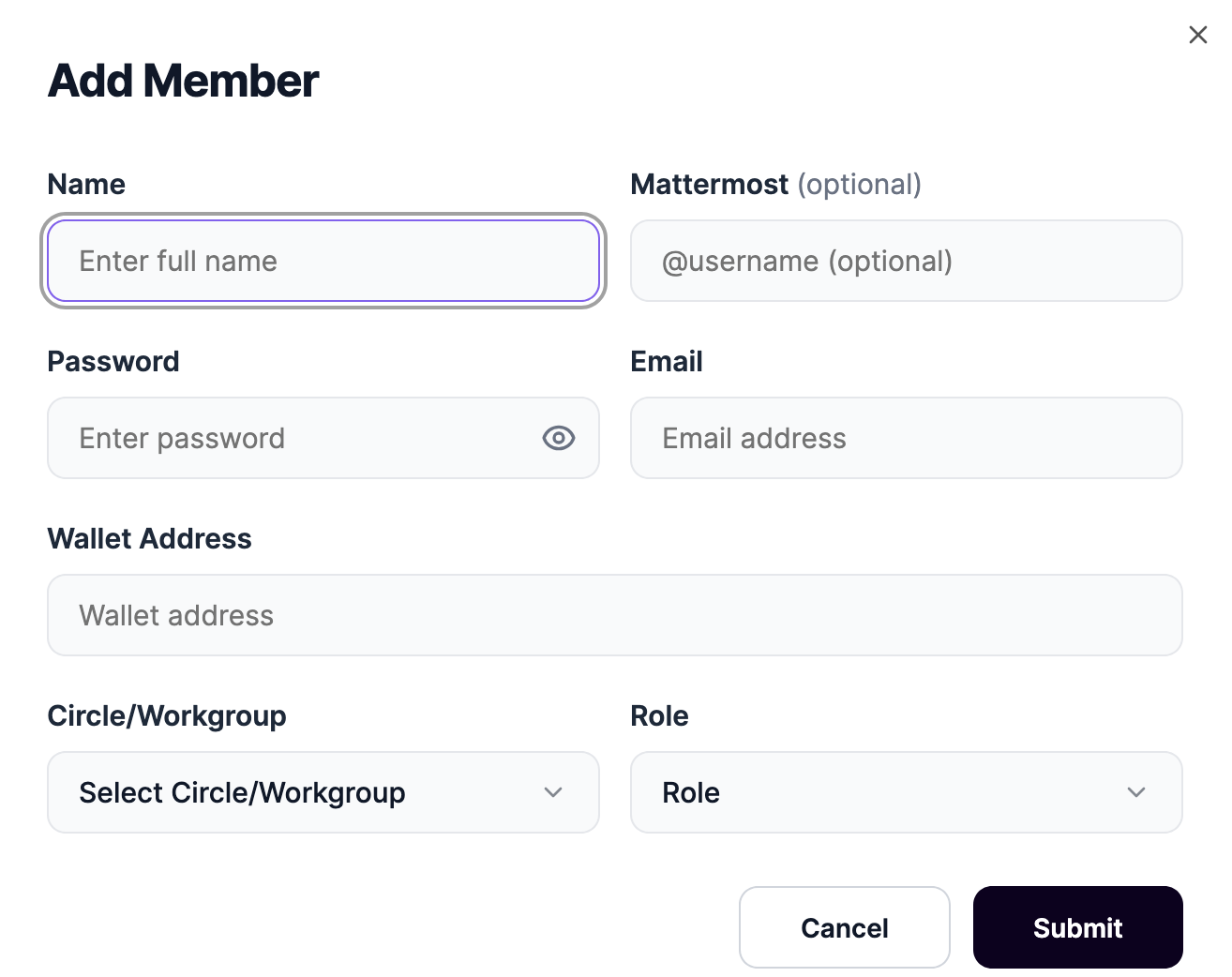
- Add Members button to create new user accounts.
- Assign action to assign a member to a Circle/Workgroup with a specific role.
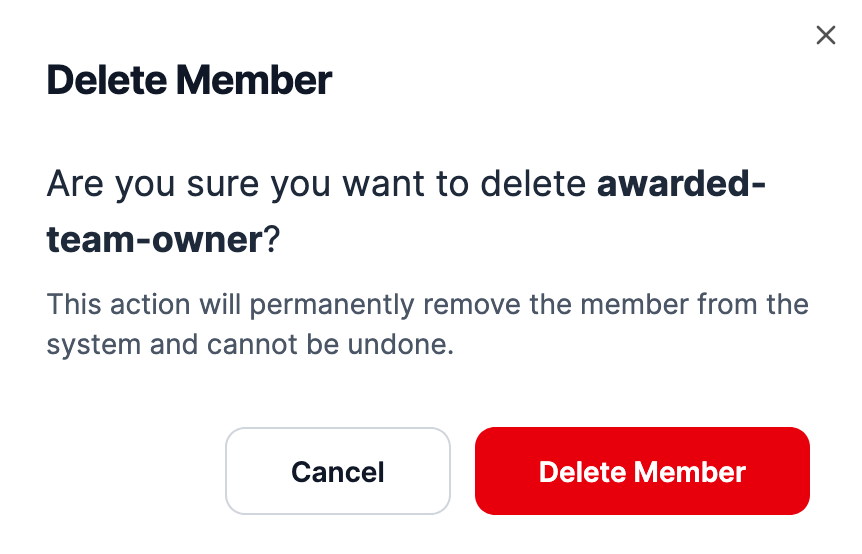
- Delete action to permanently remove a member.
- Member Page link to view detailed member profile.
-
Data and Visualizations:
- Summary cards displaying:
- Total Circle Members
- Total Awarded Teams members
- Table with the following columns:
- Name – Full name of the member
- Email – Member’s email address
- Mattermost – Mattermost username (if set)
- Wallet Address – Blockchain wallet address
- Assign – Action to assign to a Circle/Workgroup
- Delete – Action to remove the member
- Member Page – Link to individual member profile
- Summary cards displaying:
This section serves as the central user management hub, enabling onboarding, role assignment, and profile access.
Funding Teams
Coming soon.
Operations
Coming soon.